News & updates (page 40)

New:
- Added a new “All Movies” folder with a back button to go back to your folders
Highly improved success rate on barcode searches:
- Many more CDs are now recognized by barcode, by using a Discogs search
- NEW: Now also find vinyl records by barcode!
User interface tweaks:
- After adding/editing an album, the app will now always find and show your last added album in your main screen.
- Main screen will now always remember navigation state, even after device reboot.
Fixed:
- Automatically select the first result on a barcode search with multiple results.
- Swapped artist and title in results cells in the search by artist/title screen.
Big changes today! The Add Albums Automatically screen has been completely re-designed, to make it both easier-to-use and easier-on-the-eye (and it’s now called “Add Albums from CLZ Core”):
- A clear two-panel design: Search Results on the left, Preview on the right.
- The Search Results now show cover images for every album.
- Automatic Preview of selected result (no more double clicking).
- Improved success rate on barcode searches for both CDs and vinyl!
See it in action:
Here’s the full list of improvements:
Highly improved success rate on barcode searches:
- Many more CDs are now recognized by barcode.
- NEW: Now also find vinyl records on Discogs by barcode!
User interface tweaks:
- After adding/editing an album, the app will now always find and show your last added album in your main screen.
- Main screen will now always remember navigation state, even after device reboot.
Fixed:
- Add auto screen not obeying the device’s rotation lock.

New:
- After adding/editing a comic, the app will now always find and show your last added comic in your main screen.
- Main screen will now always remember navigation state, even after device reboot.
- Add auto screen will automatically perform a series search when the add auto screen is opened while a comic series is selected.
- You can now folder group on “Read It”.
Fixed:
- Add auto screen not obeying the device’s rotation lock.

Book Connect and the CLZ Cloud for books have just been improved to better handle the sort names for your authors.
Plus, you can now actually edit your author entries to change the sort name and have more control over how your books are sorted!
Here’s what’s new:
- The cloud storage has been changed to allow each user to have their own sort names for their author entries (previously, author sort names were used from the Core).
- This also means that Author Sort Names now sync better between the desktop and mobile software.
- For Book Connect and CLZ Cloud, it fixes sorting differences between the folder panel and the book list panel.
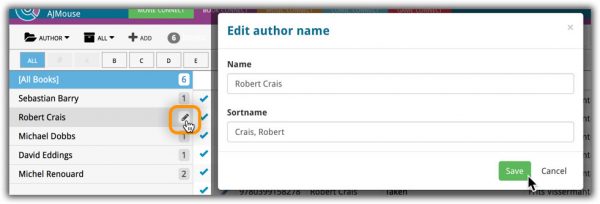
- In Book Connect, you can edit your author entries (including their sort name) from the Edit Book screen and also straight from their entry in the author folder panel (using the little pencil icon, see screen shot below)
With all the sharing features we’re building we’ve now added a way for you to set a default view for your friends so they can browse your collection the way you want them to.
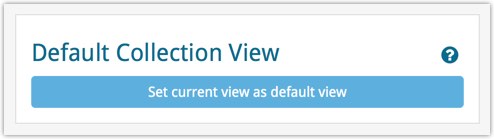
To set a default view for your friends:
Go to your CLZ Cloud / Connect page, login at the top right and set the columns, sorting and folder view you wish your friends see when they browse your collection.
Once you’re happy with the setup, choose Settings from the “wrench” icon menu top right. Then click the blue button “Set current view as default view” and you’re done! Anyone viewing your collection for the first time will now get the view you’ve just set for them.
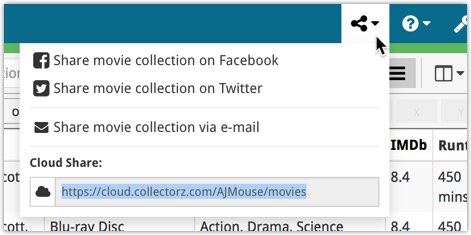
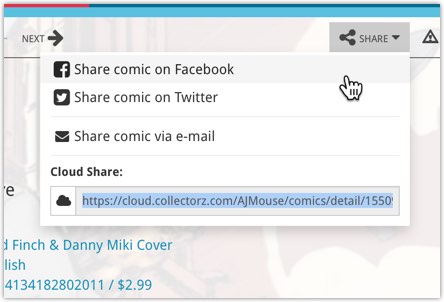
You can now quickly share your entire collection or one single item in your collection with anyone using the Share button at the top of your collection. You can share your collection or single item on Facebook, Twitter, via email or just copy a direct link using the Share icon top right.
Go to your cloud page, login at the top right, and use the Share icon at the top to begin:
Share entire collection
For your entire collection, make sure you’re on your Cloud / Connect page with all your items in view and then click the Share icon top right:
Share one single item
For one single item, click the item in your collection and then click the Share button at the top:

Big changes today! The Add Games Automatically screen has been completely re-designed, to make it both easier-to-use and easier-on-the-eye (and it’s now called “Add Games from CLZ Core”):
- A simple two-panel design: Search Results on the left, Preview on the right.
- The Search Results now show cover images for every game.
- Automatic Preview of selected result (no more double clicking).
See it in action:
Here’s the full list of improvements:
This is a new way to show your collection list to specific people, without making it Public. Just set your Cloud Visibility to Private, hiding it from public view, then generate a secret Private Cloud Sharing link. Send this link to your friends and only they will be able to see your collection. Best of both worlds!
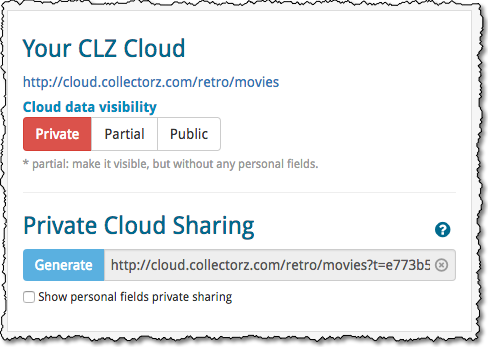
To change our Cloud Visibility, go to your cloud page, login at the top right, then choose Settings from the “wrench” icon menu.
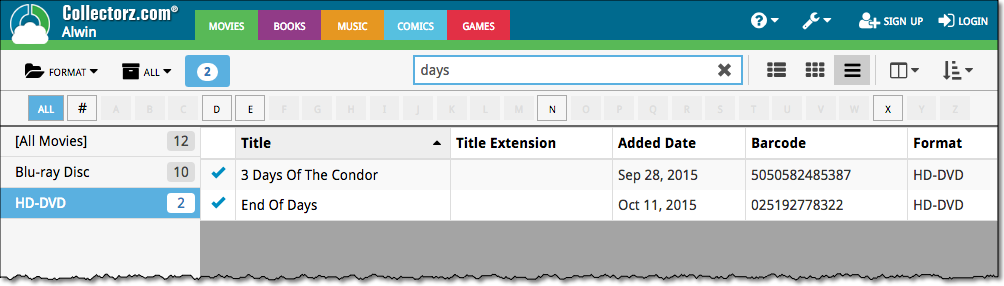
Previously, the search feature in the cloud viewer took you to a separate page showing the search results.
Now, the search is fully integrated into the regular collection viewer. Which means that you can now search, then further drill down using folders and/or the alphabet bar. Super handy, especially for large collections.
New:
- Add Comics from CLZ Core:
- Now automatically searches the series you were looking at in your app.
- New skinned preview templates.
- After adding/editing a comic, the app will now always find and show your last added comic in your main screen.
- If you log in to your CLZ Account on a new or empty device, the app will now ask you if you wish to download your comics from CLZ Cloud.
- Added skinning to Sign up/Log in/In App Purchase screens.
Fixed:
- Some barcode searches could return empty issues upon adding them.
- Reading date was displayed twice in the ‘Clear’ templates.
- After each CLZ Cloud sync the “Quick Search” and “Collection Status Filter” was cleared.
- When a custom cover was downloaded via CLZ Cloud syncing, the thumbnail in the list wasn’t immediately updated.
- When a comic was removed, the list would scroll back to the top.
- Various skinning, layout and color fixes.
New:
- Add Movies from CLZ Core: New skinned preview templates.
- After adding/editing a movie, the app will now always find and show your last added movie in your main screen.
- If you log in to your CLZ Account on a new or empty device, the app will now ask you if you wish to download your movies from CLZ Cloud.
- Added skinning to Sign up/Log in/In App Purchase screens.
Fixed:
- After each CLZ Cloud sync the “Quick Search” and “Collection Status Filter” was cleared.
- When a custom cover was downloaded via CLZ Cloud syncing, the thumbnail in the list wasn’t immediately updated.
- When a movie was removed, the list would scroll back to the top.
- Various skinning, layout and color fixes.
New:
- Add Games from CLZ Core: New skinned preview templates.
- After adding/editing a game, the app will now always find and show your last added game in your main screen.
- If you log in to your CLZ Account on a new or empty device, the app will now ask you if you wish to download your games from CLZ Cloud.
- Added skinning to Sign up/Log in/In App Purchase screens.
Fixed:
- After each CLZ Cloud sync the “Quick Search” and “Collection Status Filter” was cleared.
- When tapping the “Platform” button in the ‘Unrecognised Barcode’ screen the app could crash.
- When a custom cover was downloaded via CLZ Cloud syncing, the thumbnail in the list wasn’t immediately updated.
- When a game was removed, the list would scroll back to the top
- Various skinning, layout and color fixes.
New:
- Add Albums from CLZ Core: New skinned preview templates.
- After adding/editing an album, the app will now always find and show your last added album in your main screen.
- If you log in to your CLZ Account on a new or empty device, the app will now ask you if you wish to download your albums from CLZ Cloud.
- Added skinning to Sign up/Log in/In App Purchase screens.
Fixed:
- After each CLZ Cloud sync the “Quick Search” and “Collection Status Filter” was cleared.
- When a custom cover was downloaded via CLZ Cloud syncing, the thumbnail in the list wasn’t immediately updated.
- When an album was removed, the list would scroll back to the top.
- Various skinning, layout and color fixes.
New:
- Add Books from CLZ Core: New skinned preview templates.
- After adding/editing a book, the app will now always find and show your last added book in your main screen.
- If you log in to your CLZ Account on a new or empty device, the app will now ask you if you wish to download your books from CLZ Cloud.
- Added skinning to Sign up/Log in/In App Purchase screens.
Fixed:
- After each CLZ Cloud sync the “Quick Search” and “Collection Status Filter” was cleared.
- When a custom cover was downloaded via CLZ Cloud syncing, the thumbnail in the list wasn’t immediately updated.
- When a book was removed, the list would scroll back to the top.
- Various skinning, layout and color fixes.
Another productive week here for our Connect pages! Our web developer Joe has finished work on 2 improvements for your Connect page:
New layouts in Edit Screen
We recently took a look at our Edit Screen and figured it was time to change some fields around as we thought they weren’t all logically placed. So for all 5 Connect titles we’ve now changed the layout and placements of your fields in the Edit Screen. We also consolidated all “Cover” tabs in the edit screens so they work the same in all 5 Connect titles.
New: Duplicate feature
You can now duplicate an item in your database. To do this, click on an item in your database to view its details, then at the top click on “Duplicate”.
The new duplicated item will be an exact duplicate of the previous item, but it will be unlinked. You can Link the duplicated item with the “Link” button at the top of the details page.

Add by Barcode: Now directly connect to your CLZ Barry barcode scanning app!
We’d love to see more users enjoy the fun and ease of adding items to their database by scanning barcodes with their phone or tablet. So we also decided a couple of weeks ago to make our CLZ Barry app FREE (previously US $10).
New: Directly connect to CLZ Barry from Connect
Previously you needed a special program to connect and send barcodes to your computer, but today we added a direct connection to CLZ Barry on all “Add by Barcode” pages on Connect, which means you can directly connect to any mobile device running the barcode scanning app “CLZ Barry” and scan barcodes straight into your Add by Barcode page on Connect!
Reminder: What is CLZ Barry ?
CLZ Barry is the Collectorz.com barcode scanner app. It lets you:
- Scan barcodes with your mobile device’s camera.
- Instantly send the barcodes (the 12 or 13-digit numbers) to the Add page on Connect.
How to get started with CLZ Barry
- Open the App Store or Play Store on your device,
then search for “CLZ BARRY” and download the app. - Follow the Getting Started Guide to set up and start scanning.
Getting Started for iOS / Getting Started for Android
Big changes today! The Add Books Automatically screen has been completely re-designed, to make it both easier-to-use and easier-on-the-eye (and it’s now called “Add Books from CLZ Core”):
- A simple two-panel design: Search Results on the left, Preview on the right.
- The Search Results now show cover images.
- Automatic Preview of selected result (no more double clicking).
See it in action:
Here’s the full list of improvements:
Changed:
- Made some improvements to the barcode scanner
Fixed:
- Manual focus for barcode scanning
- Crash in the add auto screen when adding a mix of new albums and albums on wish list by barcode
- Crash in the pick cover option in the edit screen
Changed:
- Made some improvements to the barcode scanner
Fixed:
- Manual focus for barcode scanning
- Add Auto: Able to get a duplicate barcode in the barcode search queue by inputting it manually
- Crash in the add auto screen when adding a mix of new movies and movies on wish list by barcode
- Crash in the pick cover option in the edit screen
Changed:
- Made some improvements to the barcode scanner
Fixed:
- Manual focus for barcode scanning
- Crash in the add auto screen when adding a mix of new games and games on wish list by barcode
- Crash in the pick cover option in the edit screen
Changed:
- Made some improvements to the barcode scanner
Fixed:
- Manual focus for barcode scanning
- Crash in the add auto screen when adding a mix of new books and books on wish list by barcode
- Crash in the pick cover option in the edit screen
Improvements to “Selection Mode”
You can now enter selection mode and use the “Select All” button top left to select all items in a list, or use “Shift clicking” to select a bunch of items in one go (hold the Shift button on your keyboard and click a couple of items to select/deselect them).
Use these selection mode improvements to select a subset of your database and quickly export them to PDF for instance!
New “None” folder added
We added a new “None” folder to your folder group view. The “None” folder will display when the field you’re folder grouping on is empty for that item.
Example: if you folder on “Genres” but you have one item where the Genre is not filled in, that specific item will appear in your “None” folder!
Print to PDF: Field Names on every page
We added a new checkbox in the settings for Print to PDF to include the field names column header on every single page.
New statistics added
We added some more collection statistics to the statistic screen. In your Connect page, click the “wrench” icon top right and then “Statistics” to check them out!
Changed:
- Made some tweaks to improve barcode scanning.
Fixed:
- Manual focus for barcode scanning.
- Crash in the add auto screen when adding a mix of new books and books on wish list by barcode.
- Crash in the pick cover option in the edit screen.