What's new in CLZ Comics? (page 29)

Just over a week ago, we introduced a new design for the Columns screen. Today, we moved the new design over to the Sort Order screen, so that both have a consistent user interface.
Just drag your desired Sort Field to the right, then select Ascending or Descending using the toggle buttons below the field.

Next up: multi-field sorting!
Today, more sort field options have been added to the Sort Order screen of all five Connect and Cloud Viewer editions.
This basically means that from now on, ALL available cloud fields can also be sorted on.
The first version of Connect had a nice A to Z “alphabet bar” at the top, for quickly filtering your list to show only the items starting with a specific letter.
However, in the Two-Point-Oh redesign the wise wizards at the CLZ HQ the alphabet bar was reduced to just a tiny button, with a drop down panel showing all letters. Which of course saves space on the toolbar, in an attempt to make it all fit on smaller tablet and phone screens.
Not a bad idea in itself, but the first letter filtering lost its’ easy of use and accessibility.
So we changed our minds and today we brought back the Alphabet Bar!
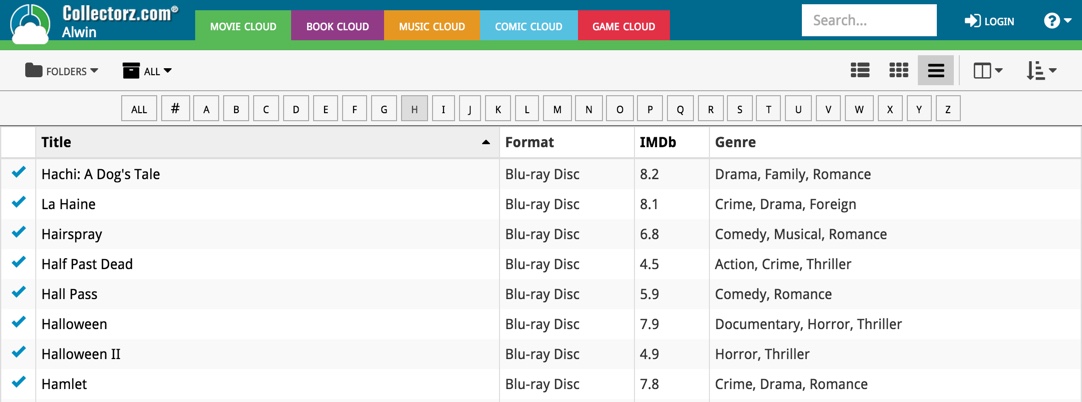
It is now available on both the free CLZ Cloud viewers and the Connect software. But: only on bigger screens where it actually fits. On smaller screens, the Alphabet Bar nicely reduces to the tiny button again 🙂
New today, in all Connect apps AND Cloud viewers: a new Column Selection screen for the List View.
This new Columns screen lets you:
- Easily select your preferred columns by dragging fields from the Available Columns area to the Selected Columns area.
- Drag and drop to re-order columns within the Selected area.

Several small fixes today:
- Editing multiple items with really many items selected (say over 1,000) didn’t work.
Now it does. But still, editing many items in one go may be slow. - On large desktop screen, with the browser window set full screen, the infinite scrolling system didn’t work.
It immediately stopped loading after the first set of items was shown. Happened only in Images and Card Views though, in List View all was well. Fixed now. - When changing the sorting by clicking a column header, the sort direction of the previous sort column was used. Now it correctly resets to ascending sorting when changing to a different sort field.
Until recently, the public Cloud Viewer always followed the Sort Order and Columns selection set by the owner of the specific cloud collection you were viewing.
But as of today, the Cloud Viewer also features the Sort Order and Columns buttons:

Now, everyone who views your collection in the cloud is able to select his own Sort Order and Columns. Of course these settings are saved only for them (in a local cookie on their device), so their choices will not affect your own settings.
After a short absence, the Share to Facebook feature is back.
We have now re-implemented this feature using Facebook “stories”.
– Select an item in your collection, click the Share button and select “Facebook”.
– Now enter a personal message and click the Share button.

Which will result in a post like this on your Facebook timeline:

About a month ago, we introduced a new “quick edit” pop-up screen, that is probably already saving you a lot of clicks and page refreshes.
Today we’re taking the next step: Batch editing!
- Click the Select button top right
- Now click entries in your list to select them. They will highlight in light blue.
- Now click Edit on the top right to open the Batch Edit screen.
- Check the checkbox of the fields you want to change, then enter the new value.
- Click Save to apply the changes to all selected items.
This is a very powerful feature that will save you lots of time.
But beware, as Uncle Ben once said: “With great power comes great responsibility”!

BTW: the same selecting system can now be used to remove multiple items in one go.
Super-handy but even scarier if you make a mistake. So be careful!
Are you also using our desktop or mobile cataloging solutions to sync to and from the CLZ Cloud or Connect?
Then this is a big day, as we have completely rewritten the CLZ Cloud syncing mechanism, to make it easier to use, faster and capable of syncing very large databases.

Today’s update is a Connect-only update, not available in the CLZ Cloud viewer. After all, editing items is a privilege of the paid Connect subscriptions 🙂
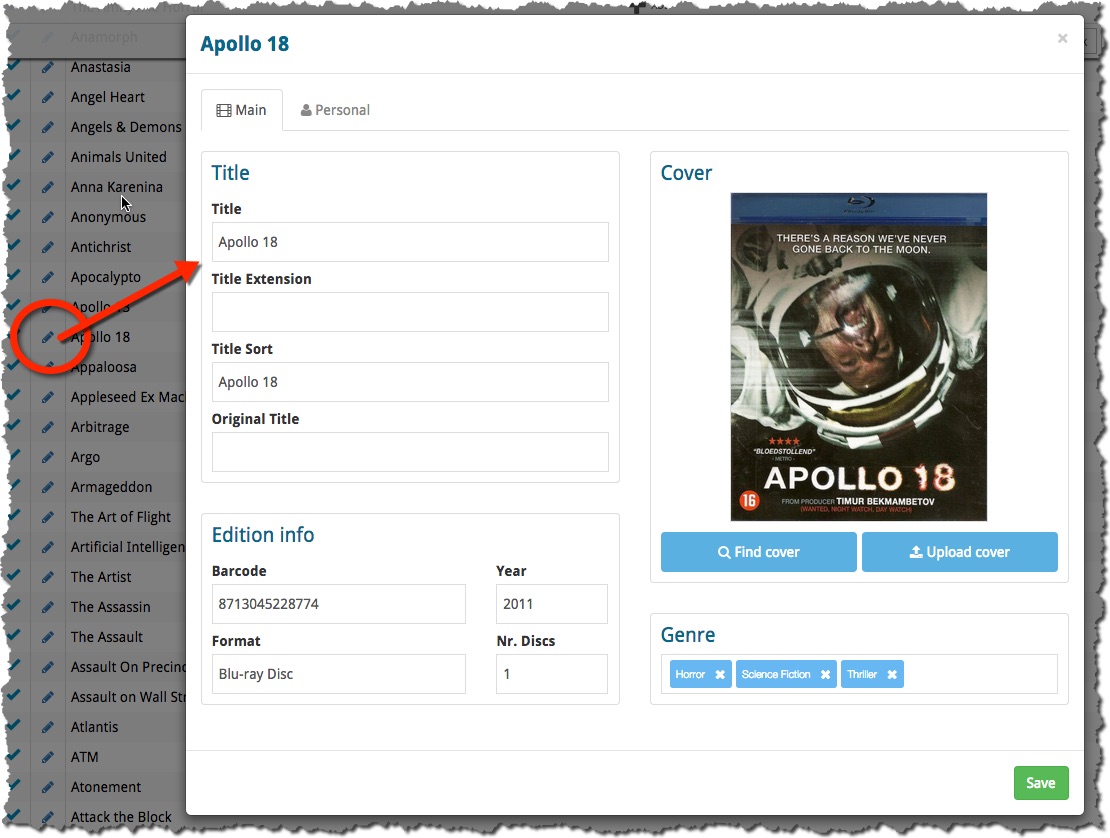
The Edit screen is now a pop-up window, similar to the desktop software, that can be opened from anywhere: from the List View, Cover View, Card View or from an item’s detail page. Opening the edit pop-up from the main list will save you a lot of clicks and page refreshes.
(Previously, editing could only be done on the Edit page, which was only accessible from the Details page of an item.)
Since Connect 2.0, your collection lists use a “Facebook-like” infinite scroll system: just scroll down to the bottom of the page and the next batch of items is loaded. No more needed to Browse through separate pages with Next and Previous buttons.
Today we have made this infinite scrolling a lot smoother, by optimizing the loading process of the pages. In most cases, you won’t even notice a delay when you scroll down.
Happy scrolling!
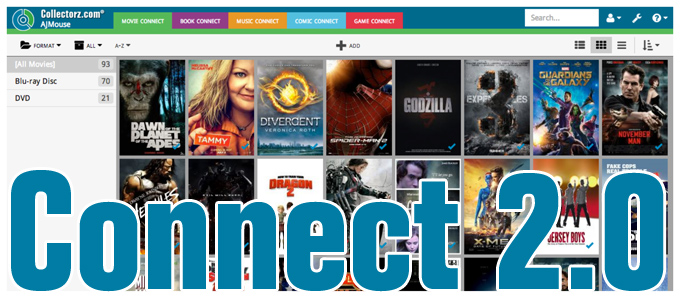
It’s been an ongoing project at our CLZ HQ for a long time, but now it is finally live, Connect 2.0! Connect 2.0 is a completely revamped version of our web-based collection cataloging solutions.
The goal of this new version:
- Introduce a more modern look and feel.
- Support all screen sizes (desktop and mobile) with one app.
- Re-think the user interface to make it more logical and intuitive.
Here’s an overview of what’s new:
Read more