
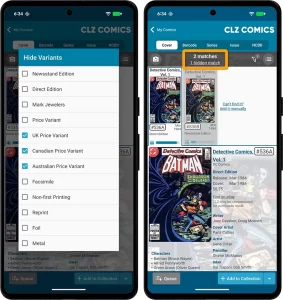
 Since we launched the Cover Scanner feature, just over a year ago, it has grown into the most popular method of adding comics and checking values. Four months ago we already did a big update to the feature, to make it easier and fast to use (less clicks) and to add a much requested Queue Mode.
Today, we are doing another update to the Cover Scanner, to better help you select the correct match:
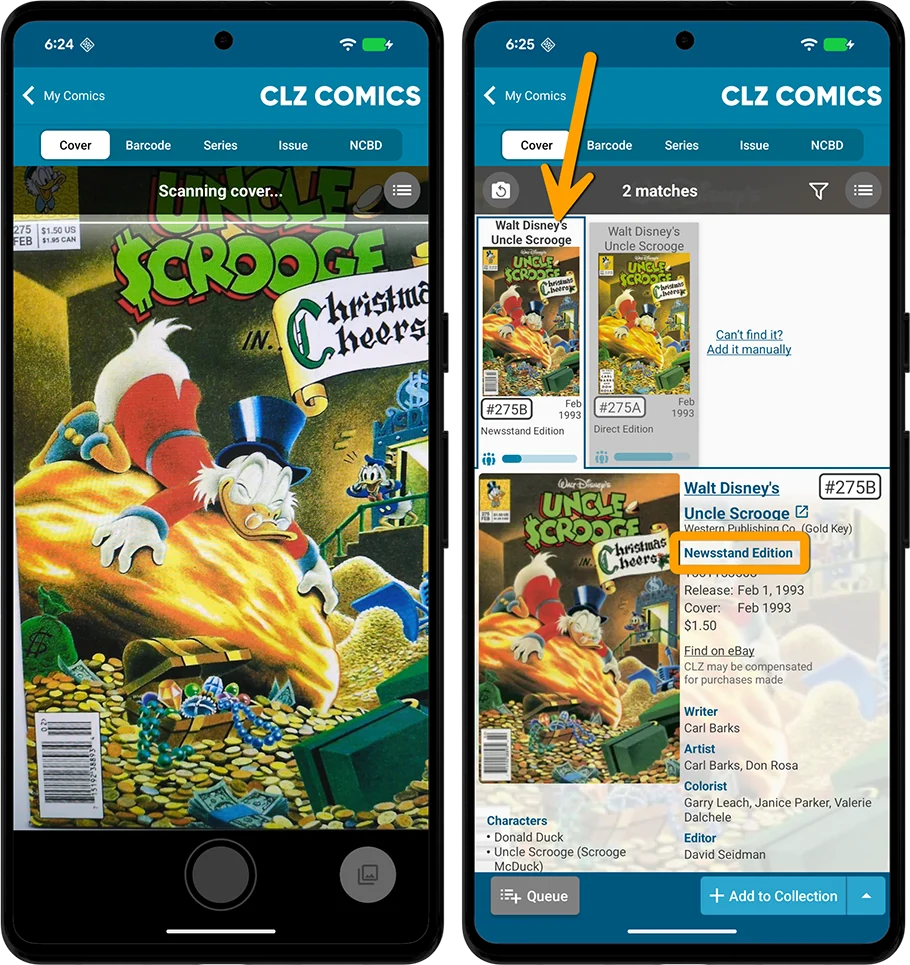
- Improved recognition of Newsstand vs Direct editions
- A new Variant Filter to always hide specific variants
- Popularity indicators for each match
Also new in this update, a small but helpful addition to the Check Value screen:
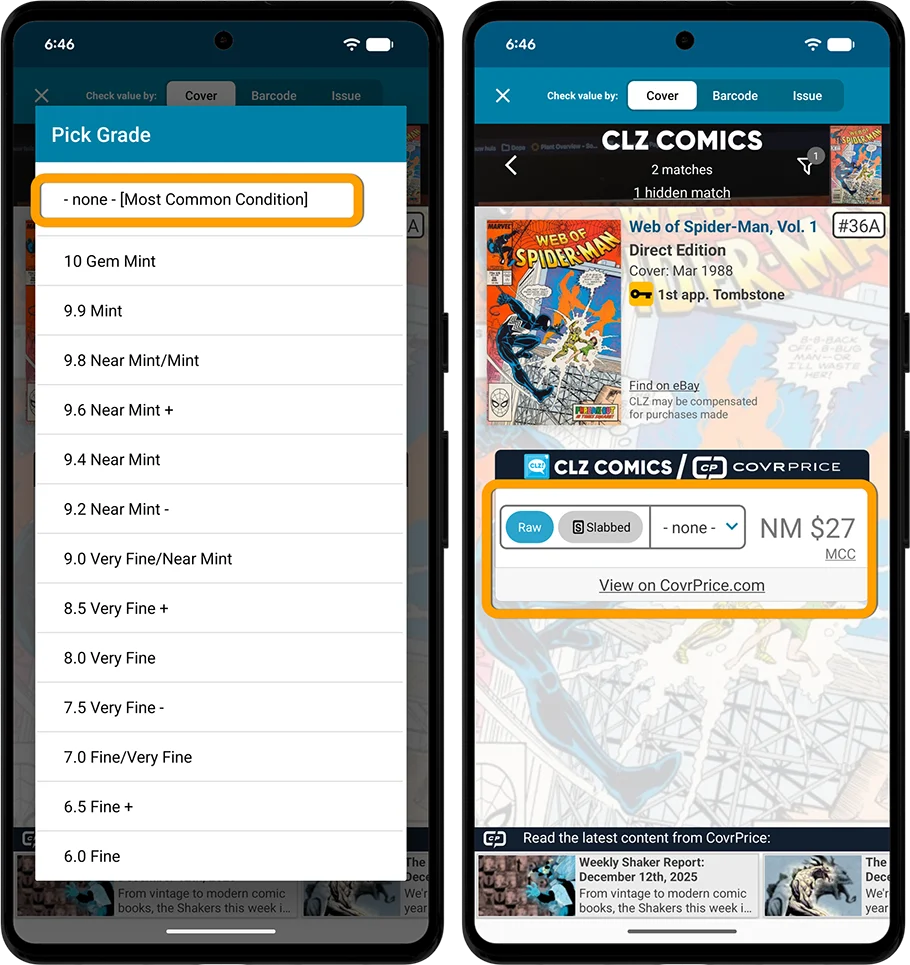
- The Grade selector now has a new “-none-” option, so that you can easily check values without setting a Grade.
Improvements for the Cover Scanner
Improved recognition of Newsstand vs Direct editions
The Cover Scanner now does a better job recognizing Newsstand editions from Direct Editions. In other words, if you scan a Newsstand edition, it is more likely that the Newsstand edition will indeed be shown as the first and default match.
A new Variant Filter to always hide specific variants
This is a request we have received multiple times since launch, especially for scanning comics for which there are many very similar covers.
“I do not own UK / Canadian / Australian comics. Is there any way I can hide those from the cover scan results?”
That suggestion definitely makes sense, as it will make it more likely that your the comic you scanned is showed as the first and default.
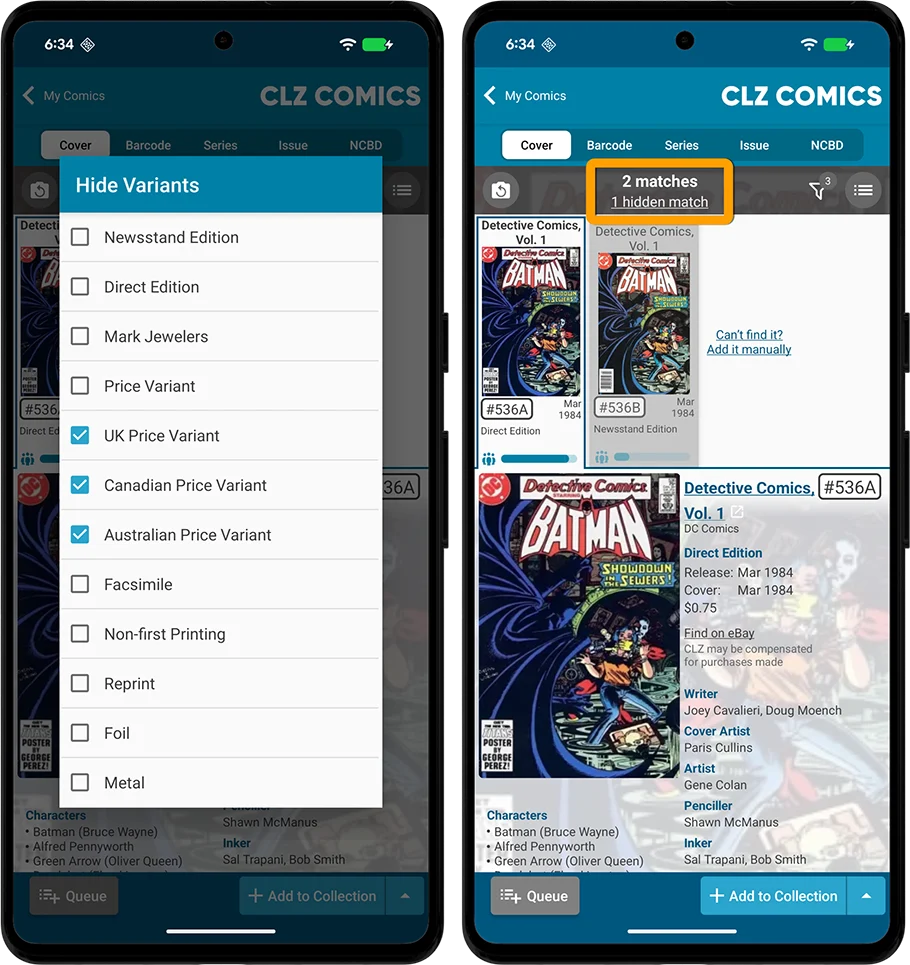
So we implemented a new Variant Filter, that lets selected which type of variants you want to hide. Choose from:
- Newsstand Edition
- Direct Edition
- Mark Jewelers
- Price Variant
- UK Price Variant
- Canadian Price Variant
- Australian Price Variant
- Facsimile
- Non-first Printing
- Reprint
- Foil
- Metal
When you scan a cover while a Variant Filter is active, the bar at the top will tell you if there are any hidden matches. Tap that number to instantly show those matches anyway.
Popularity Bars for each match
The above two changes will probably help you select the correct match in most cases, but we wanted to give you one more useful bit of info to help you pick your match more easily.
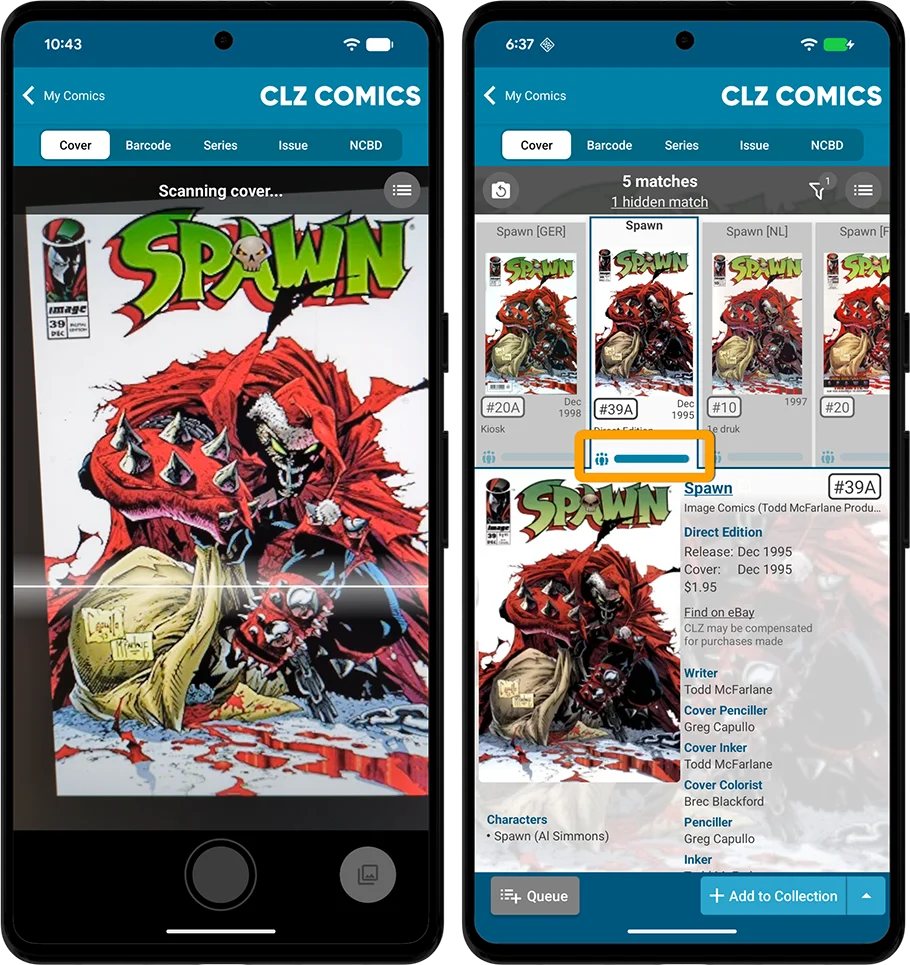
All cover scan matches now include a “Popularity Bar”, which shows the relative popularity of each match, based on the number of occurrences in our CLZ Cloud. In most cases, that help you to instantly spot the “regular” variant, the most popular and probably most likely match.
For example, if you scan the regular edition of a comic and there are multiple variants with very similar covers, the Cover Scanner may in some cases still select an Italian version, or a reprint or facsimile, as the first match. When that happens, the Popularity Bars will help you to instantly spot the regular cover (because it will have the biggest bar).
Now, I know some of you will think “then why not just sort the matches by popularity?”.
Good point and we did try that. With disappointing results. Most importantly, it would make the results worse when actually scanning a less popular version. So we decided to let the cover recognition do its job the best it can, then give you the Popularity Bars as an extra tool to make your own decision.
Check Values without setting a Grade
In your collection, you can leave the Grade field empty and you will still get a value from CovrPrice. In that case, CovrPrice just gives you the value for their “Most Common Condition”, basically the grade they have tracked the most sales for.
However, in the Check Value screen, this was not possible. You always needed to set a Grade to be able to check for a value.
So in today’s update, we added a new “-none-” option in the Grade selector for the Check Value screen, so that you can easily check values without setting a grade. And thus get the CovrPrice value for their Most Common Condition.
Fixes:
Fixed for iOS:
- Check Value: A crash could happen in the Check Value screen
- Missing comics: opening the series in Add Comics would open it in the old layout
- Update from Core: comics without issue number were always marked as ‘updated’
- Add Comics: Barcode scanning didn’t show the camera on 1st generation SE devices
- Add Comics by scanning the cover: adding a single comic from a queue of comics didn’t work
- iPad: Edit screen: Pick List fields: When picking from a list the app would sometimes pick a different item
Fixed for Android:
- Add Comics: on some devices (foldable phones, tablets) the preview popup did not come up high enough to show all details