
 This is it, THE main feature release for 2026. A huge step forward in the customizability of the software. And I am not talking about tweaking the look and feel here, like layout, colors, fonts, etc… No… this time we are giving you the ability to actually customize the database itself!
Yep, today is the launch of the “Custom Fields” feature (previously known as “User Defined Fields”).
The Custom Fields feature will let you create your own data fields, to catalog any information for which the software does not have a built-in field. You can create text fields, number fields, date fields, Yes/No toggles, pick list fields and much more.
All fields you create can be edited on a special Custom Fields tab of the Edit screen and their data will nicely appear in a special section in the book details panel in the main screen. And of course, you will be able to use the fields like any built-in fields, use them as columns, sort on them, use pick list fields as folders, add the fields to printed list, exports, etc..
Custom Fields Overview
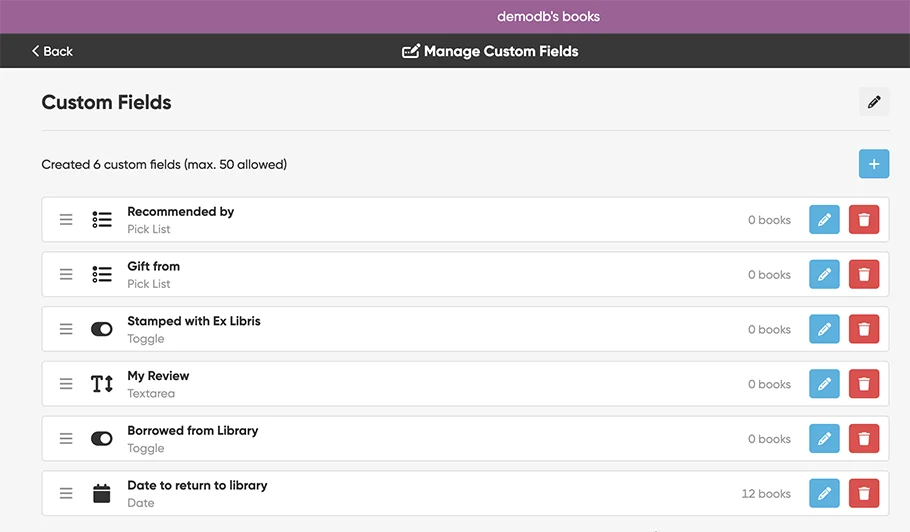
This is the “Manage Custom Fields” where you can add, remove, rename fields, showing some example custom fields:
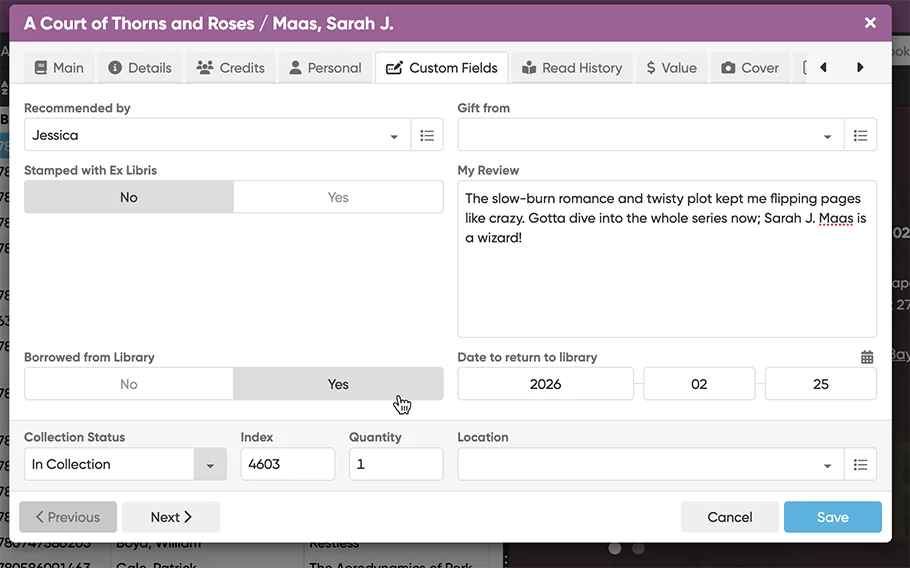
Use the special Custom Fields tab in the Edit Book screen to fill in your created fields.
Of course, you can also use the Edit Multiple screen to edit your fields in batch for many books in one go!
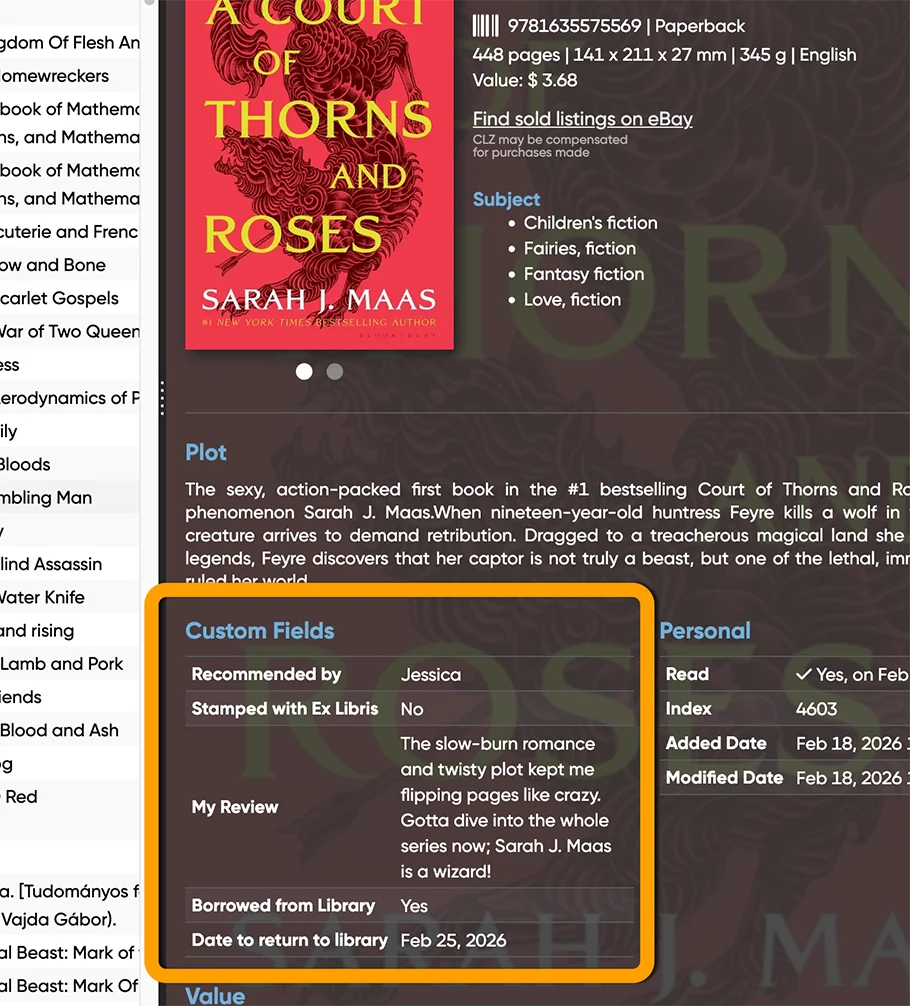
The Custom Fields will of course also appear in the Details Panel, the area where it shows all information for one book. There is a special block with the custom data near the top, showing all your fields and their data.
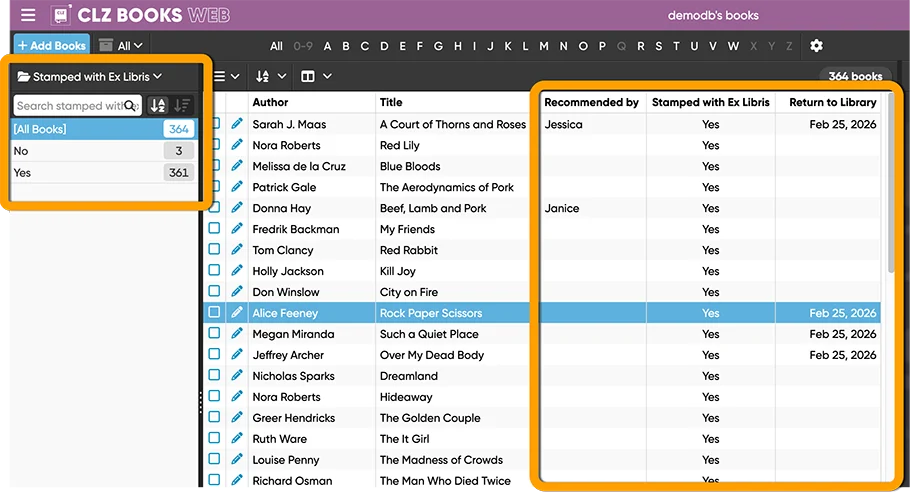
Of course, you can also add your custom fields as columns in your List View!
Or use your custom pick list fields as folders in the folder panel.
Creating your own Custom Fields
Creating your own fields is done in the Manage Custom Fields screen, open it from the menu, first option under Customization.
Here you add new custom fields, rename them, change their order, or remove them.
Tip: you can edit the “Custom Fields” heading at the top to your own liking, e.g. to “My Fields”.
The name you choose will be used in all places where the custom fields appear.
Click the big blue “Add Custom Field” button to get started.
Check out the manual on Creating Custom Fields for more information.
Select the Field Type:
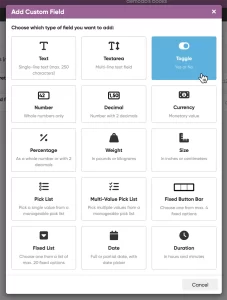
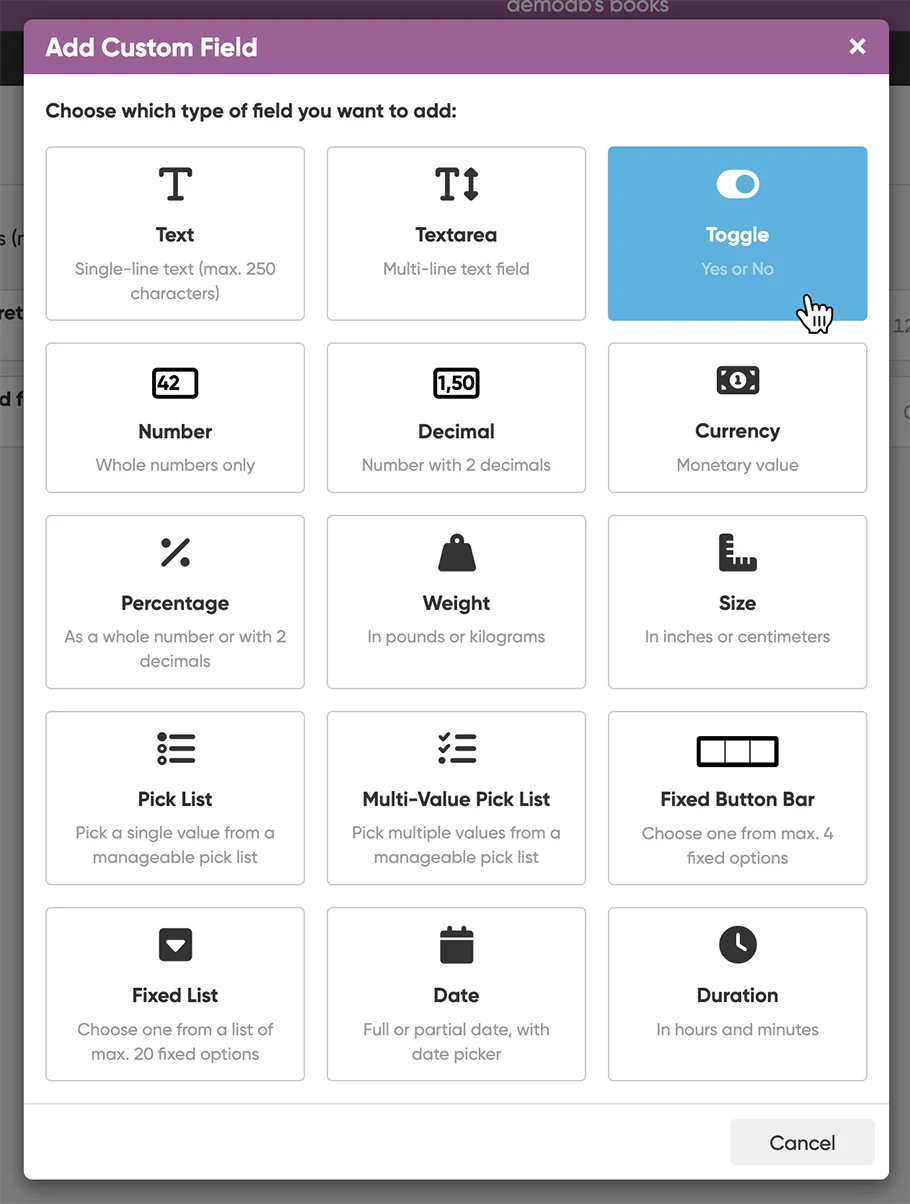
First, you need to choose the type of field you want to add. Choose the one that best fits the type of data you want to track.
Lots of options, the feature already offers 15 different field types!
- Text
Single line text field (for max. 250 characters) - Textarea
Multi-line text field - Toggle
Toggle between Yes and No - Number
Whole numbers only - Decimal
Numbers with 2 decimals - Currency
Monetary value - Percentage
As a whole number or with 2 decimals - Weight
In pounds or kilograms - Size
In Inches or Centimeters - Pick List
Pick a single value from from a manageable list - Multi-Value Pick List
Pick multiple values from a manageable list - Fixed Button Bar
Choose one from max. 4 fixed options - Fixed List
Choose one from a fixed list of max. 20 options - Date
Full or partial date, with date picker - Duration
In hours and minutes
Check out the manual for more details on the different field types.
Set other field properties, like the Field Name
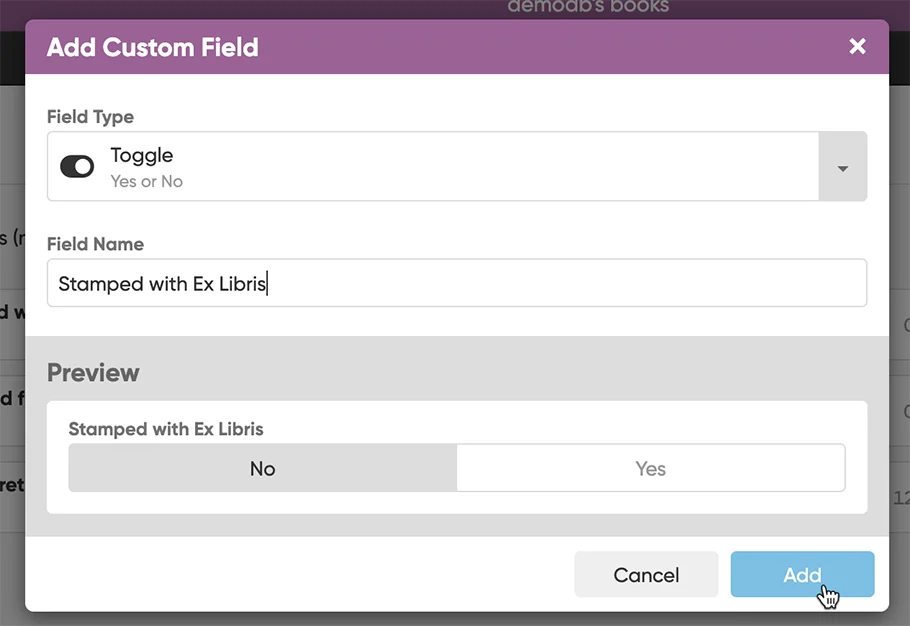
Once you have selected a Field Type, a screen will appear that lets set the Field Name and possibly several other properties, depending on the type you selected.
A preview of your new field will appear at the bottom. When satisfied with your choices, click Add at the bottom right.
Managing your fields
Once you have create some fields, you can drag and drop them to change their order. The order will used in the Edit screen, and in the display area in the Details panel.
You can Edit your created fields too, but only their name and possible control and display type.
More information about Managing Custom Fields can be found in the manual.
NOTE: Once you have created a field it is not possible to change the Field Type afterwards! You will need to add a new field with the desired Type and remove the old field. If the field already had data, you can move that data from the old to the new field with the Transfer Field Data tool.
Custom Fields Demo Video
Here’s a demo video CLZ AJ created that shows how to add some custom fields:
Coming up for the CLZ Books mobile app within 3 months
The Custom Fields feature is now live for the CLZ Books Web web-based program only. But… it is also coming to the CLZ Books mobile app! We have just started on that and we hope we can finish that project within 3 months.
ETA: end of May, early June?
Once Custom Fields are live for the mobile, you will be able to sync your custom field definitions and their data back and forth between Web and Mobile!